Complete your first Solidity investigation.
Each “Open example” button creates a separate saved session in the mode it needs. Most examples open as a REPL transcript; persistent state opens as an editable Source document. Your existing work and unfinished draft remain saved.
Maintained by @BitmayRun the preloaded REPL entry
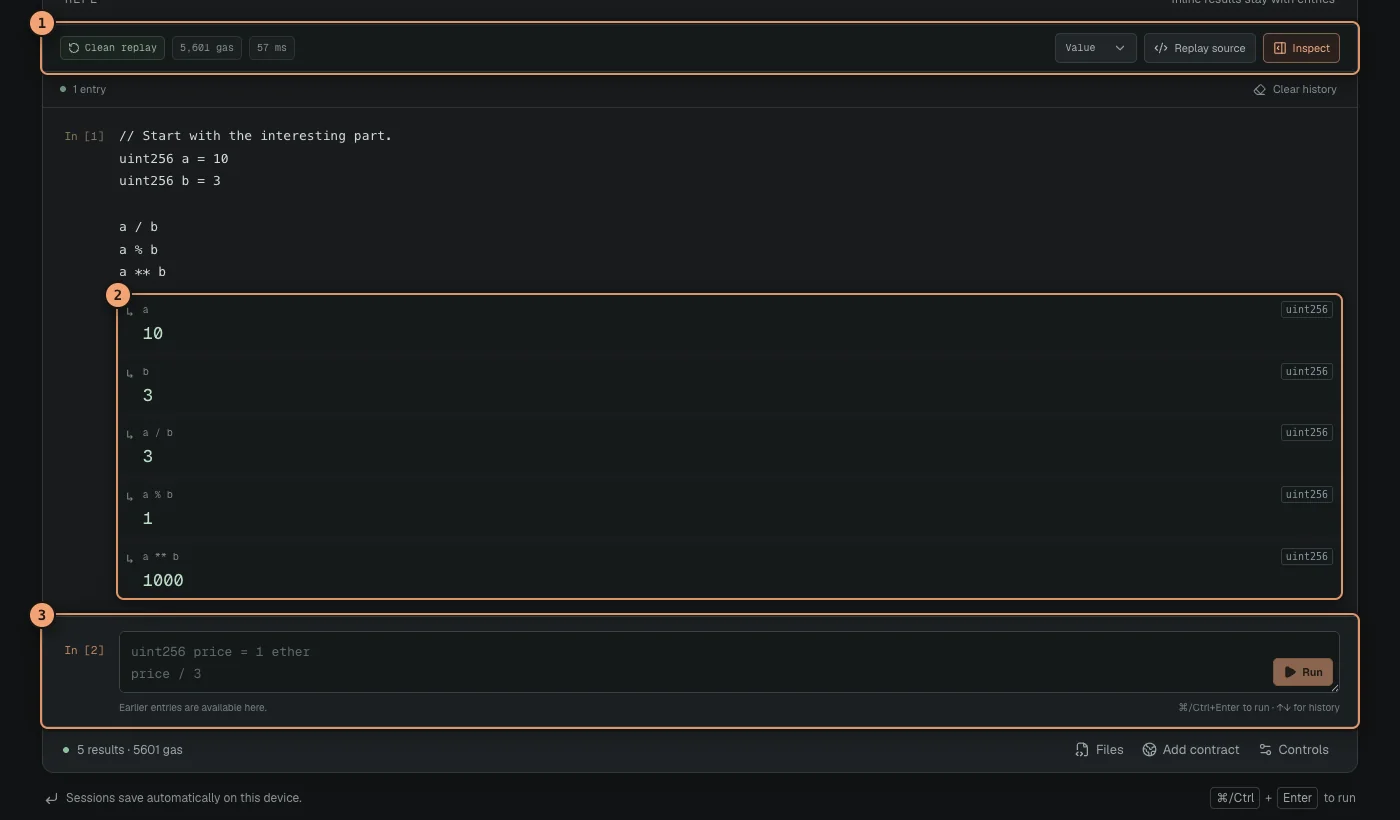
Open the arithmetic example and inspect its preloaded entry. It declares a and b, then evaluates division, remainder, and exponentiation with them. Solidity REPL normally runs the example as it opens; select Run if it has not finished.
uint256 a = 10
uint256 b = 3

a / b
a % b
a ** b
Each result appears directly beneath this accepted entry. The example also demonstrates that a pragma, contract, function wrapper, and semicolons are optional.
 Open full size
Accepted entries keep their Solidity and typed results together; the composer waits below.
- Replay summary
- Inline results
- Entry composer
Build on earlier entries
In the composer below the transcript, enter (a + b) * 2 and press Run or use ⌘/Ctrl Enter. The new entry safely reuses both declarations from the accepted entry above it and displays 26 inline. Functions, structs, imports, and deployed contract variables work the same way.
(a + b) * 2Press the up or down arrow at the edge of the composer to recall earlier input. On an existing entry, choose Edit, change the code, then select Update & run. Use again copies its code into the composer, while Delete proposes removing it.
An edit or deletion stays a candidate while Solidity REPL validates the complete accepted history with a clean replay. Solidity REPL commits the change only when that full replay succeeds; otherwise the accepted entry and last successful replay stay unchanged.
a + missingValue. The rejected entry and its error stay visible, and the summary says Attempt not committed. Solidity REPL keeps replaying the last accepted history. Choose Edit, replace it with a + 1, then select Update & run; or use Delete and continue from the prompt.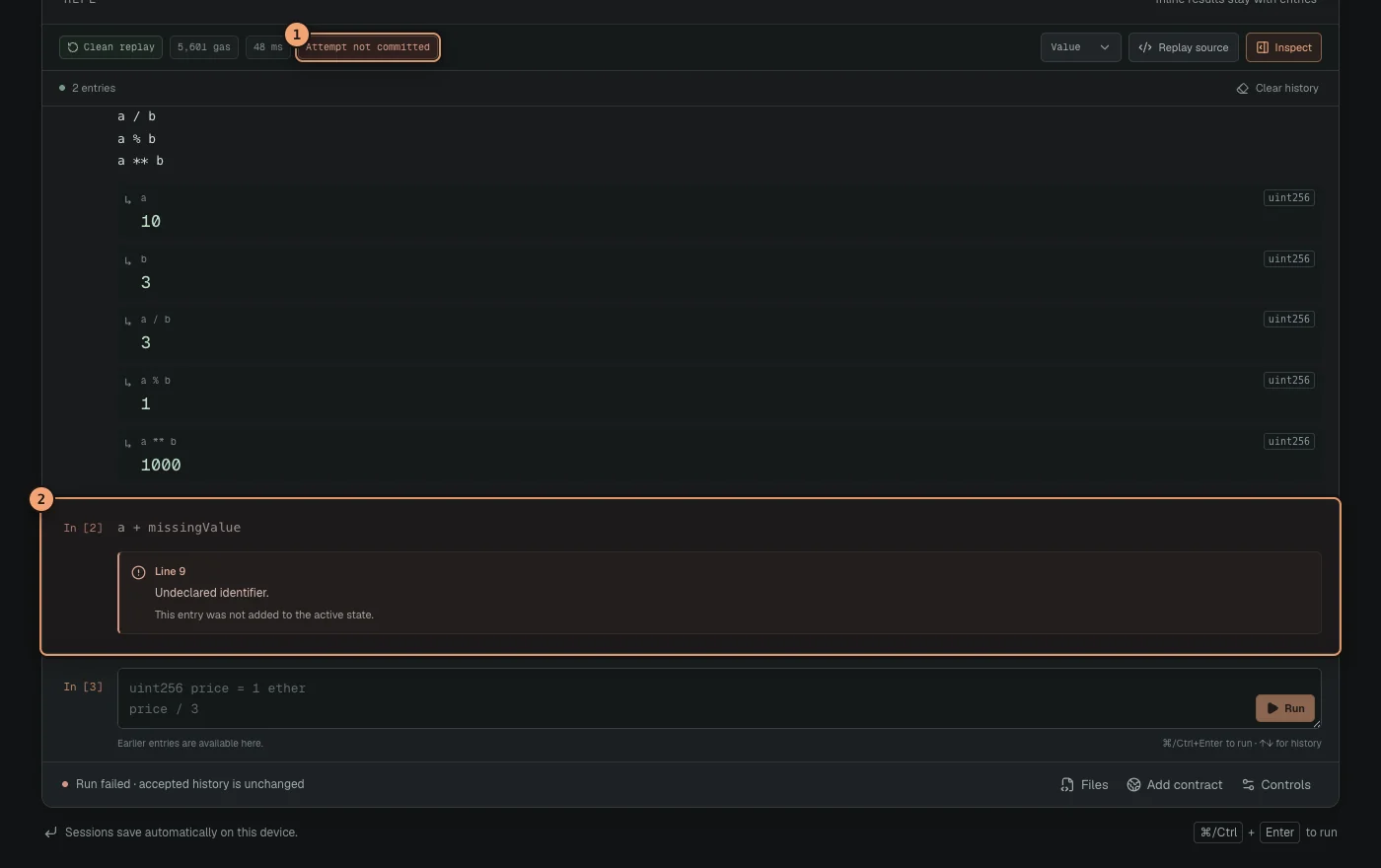 Open full size
The failed entry remains visible, but the clean replay still uses only accepted history.
- Attempt not committed status
- Rejected entry and error
Read inline results and inspect the run
Typed values and errors appear beneath the entry that produced them. Use the value format control to view compatible output as display text, decimal, hexadecimal, a full word, ABI bytes, or JSON. The strip above the full-width transcript says Clean replay and reports gas and elapsed time. Log, call, and storage write counts appear there only when the run produced them.
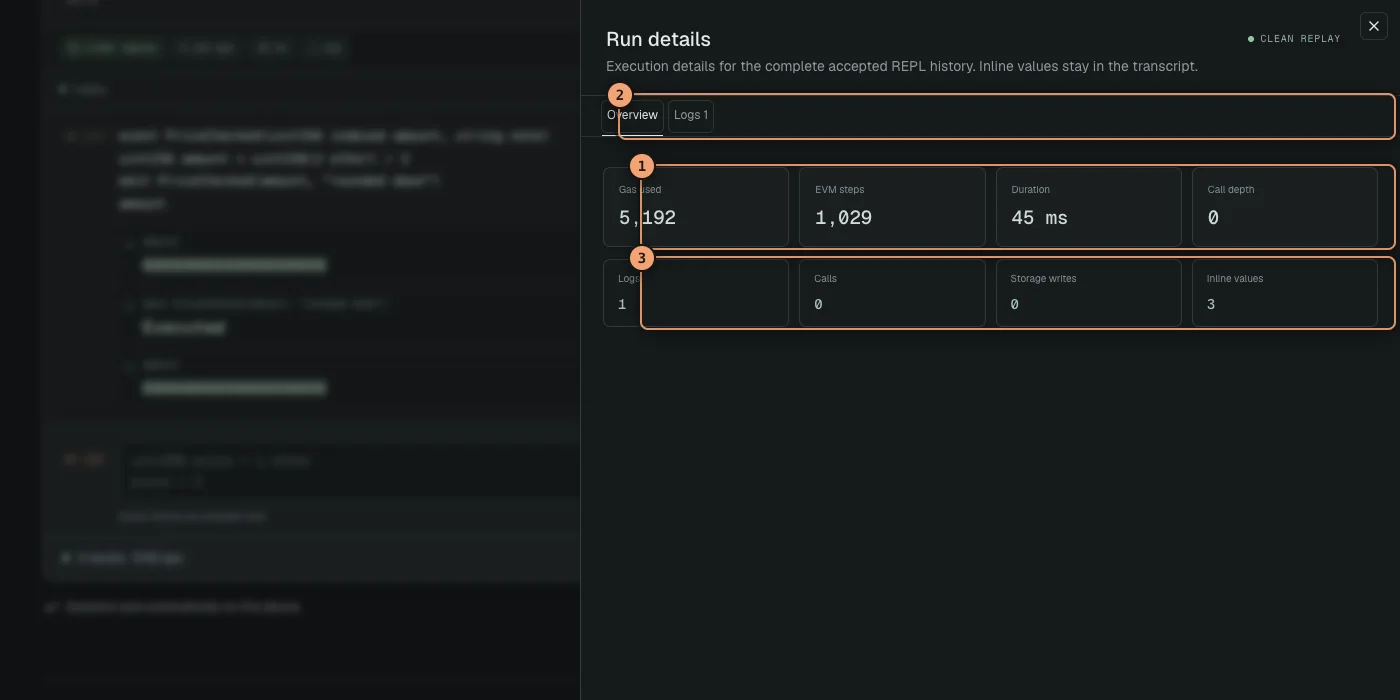
Select Inspect to open the Run details drawer. Overview shows gas, EVM steps, duration, call depth, and activity totals. Logs, Calls, State, and Debug tabs appear only when that replay has matching activity. A simple calculation may need only its inline value and Overview.
 Open full size
Inspect opens Overview first; activity tabs appear only when the replay produced matching data.
- Execution metrics
- Available activity tabs
- Activity totals
Replay source shows the cumulative program Solidity REPL compiled; Inspect explains how that replay ran.
Open the event example to see decoded event arguments, the contract example for CREATE and CALL entries, and mapping storage for committed slot writes.
Change the transaction context
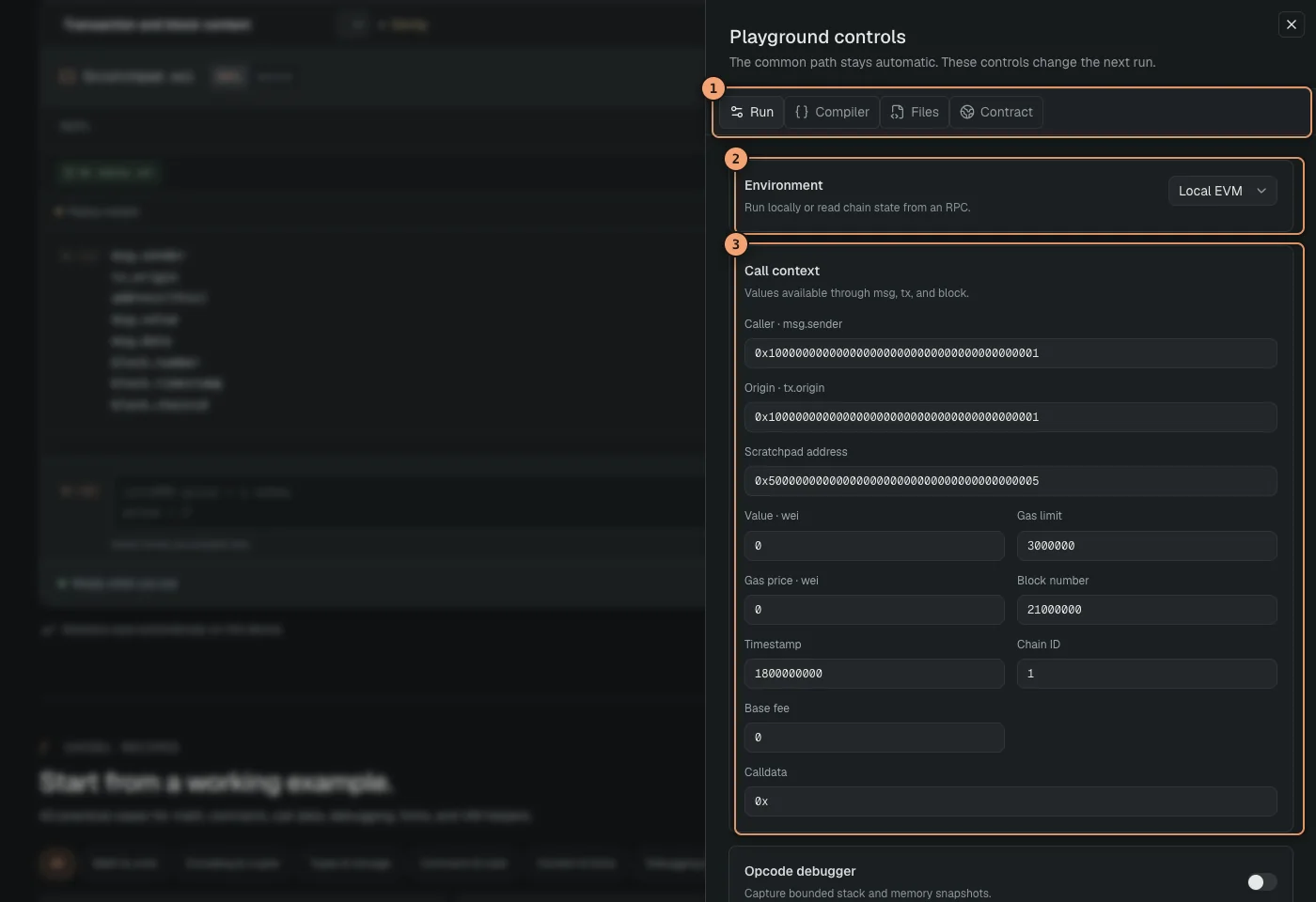
Open the context example. The Run controls appear with prepared block values. Change Caller, Value, Calldata, Block number, Timestamp, or Chain ID and run again. Expressions using msg, tx, and block immediately reflect those settings.
 Open full size
Run controls change the local transaction and block context for the next evaluation.
- Control tabs
- Local or Fork environment
- Call context
Work with files and imports
The library example arrives with MathLib.sol already attached. Open Files from the editor footer to inspect or edit it. Add another file by entering a safe .sol path and selecting Add. Relative imports resolve from these browser files.
import "./MathLib.sol"
MathLib.double(21)Select the compiler pipeline
Select the Solidity version button above the workspace and search by a full or partial version such as 0.4 or 0.8.36. Choose one exact stable release from 0.4.0 through 0.8.36. Solidity REPL pins that version to this session.
The first use of a release may download its browser build from the official Solidity compiler distribution. After that, the browser cache makes later runs available without downloading the same build again. Choose the EVM target and optimizer settings offered for the selected release; via IR appears only for compilers that support it.
Use Source mode and persistent state
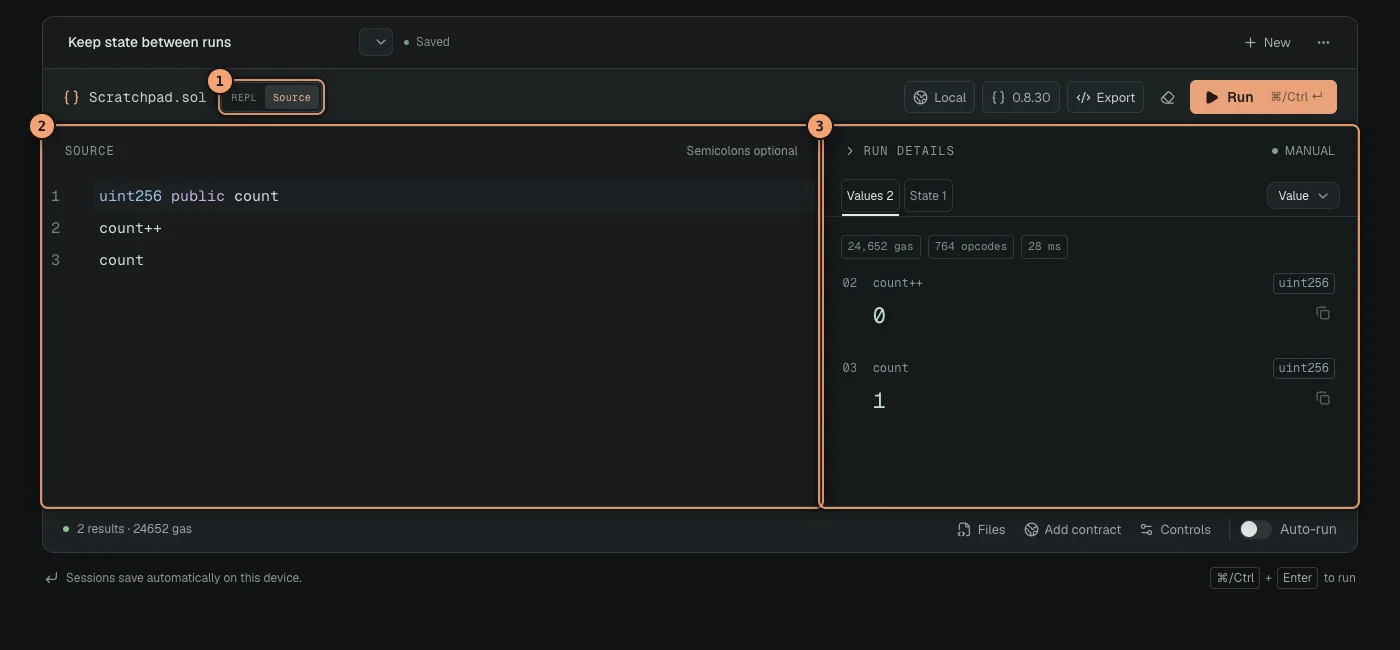
REPL history always replays from a clean EVM so its result stays reproducible. Select Source above the editor when you want to edit the entire program as one document. Source mode also provides Keep EVM state for experiments where each manual run should continue from the previous storage, balances, and deployments.
Source mode keeps a permanent Run details panel beside the editor, or below it on a small screen. After a runnable result, Values contains every displayed expression. Logs, Calls, and State appear when the run emits, calls, or writes storage; Debug appears when debug capture is enabled. Unlike the REPL drawer, this panel stays open while you edit and rerun the complete document.
 Open full size
Source mode keeps Run details beside the editable document; on a small screen it moves below.
- Mode toggle
- Source editor
- Permanent Run details
Merely viewing Source mode keeps every transcript entry. After a source edit, typing changes the document immediately and may mark the prior Run details as stale until the next run. If you switch back to REPL, Solidity REPL first validates the edited document with a clean run. Valid source becomes one accepted REPL entry; invalid source remains in Source mode with its error.
Open the persistent counter and press Run several times. The counter continues from the previous result. Open Controls → Run and select Reset EVM state, then press Run. The reset applies to that next Source run, which starts from the configured beginning.
Open persistent stateUse local EVM helpers
VM helpers change the temporary EVM directly. Use them to set balances, storage, bytecode, time, and block number without writing setup contracts.
address alice = address(0xA11CE)
vm.deal(alice, 5 ether)
vm.warp(1_800_000_000)
vm.roll(21_000_000)
alice.balance
block.timestamp
block.numberDebug an execution
The assembly example starts in manual debug mode. Run it, open the on-demand Inspector, select the Debug tab that now appears, and choose different opcodes. It shows the program counter, remaining gas, call depth, source line, stack, and memory for that step. In Source mode, Debug appears in the permanent Run details panel whenever debug capture is enabled. The engine captures up to 600 debug steps, and the current step list shows the first 240.
Open assembly debuggerRead live chain state
Open the USDC recipe and select Run. Solidity REPL asks for your Ethereum RPC endpoint, then continues the run against the recipe’s fixed block. Change the contract, holder, or block to investigate another question. Leaving the block empty starts from the latest block and pins it after the first successful run. Fork execution never broadcasts a transaction.
Load a verified contract
From the workspace footer, select Add contract. Enter the chain ID and deployed address. When Sourcify has verified metadata, Solidity REPL adds a generated interface file and a typed variable to the current program. Choose Fork or Local before adding it. No provider is selected automatically. Fork asks for an RPC endpoint when the first run needs chain state.
Read verified contract loadingUse recipes, sessions, and REPL commands
Search the REPL Recipes section or filter it by category. Each recipe opens as a separate saved session in its intended mode: REPL for fragment examples and Source for the persistent-state example. Rename it, duplicate it, switch through history, or use the session menu to import and delete work. Sessions preserve accepted entries, rejected attempts, and the current draft. Press ⌘/Ctrl K for the command palette.
:helpShow REPL commands and shortcuts.:clearClear the transcript.:resetReset the EVM and replay accepted history.:sourceOpen the Source & export dialog.:settingsOpen execution controls.Review and export exactly what ran
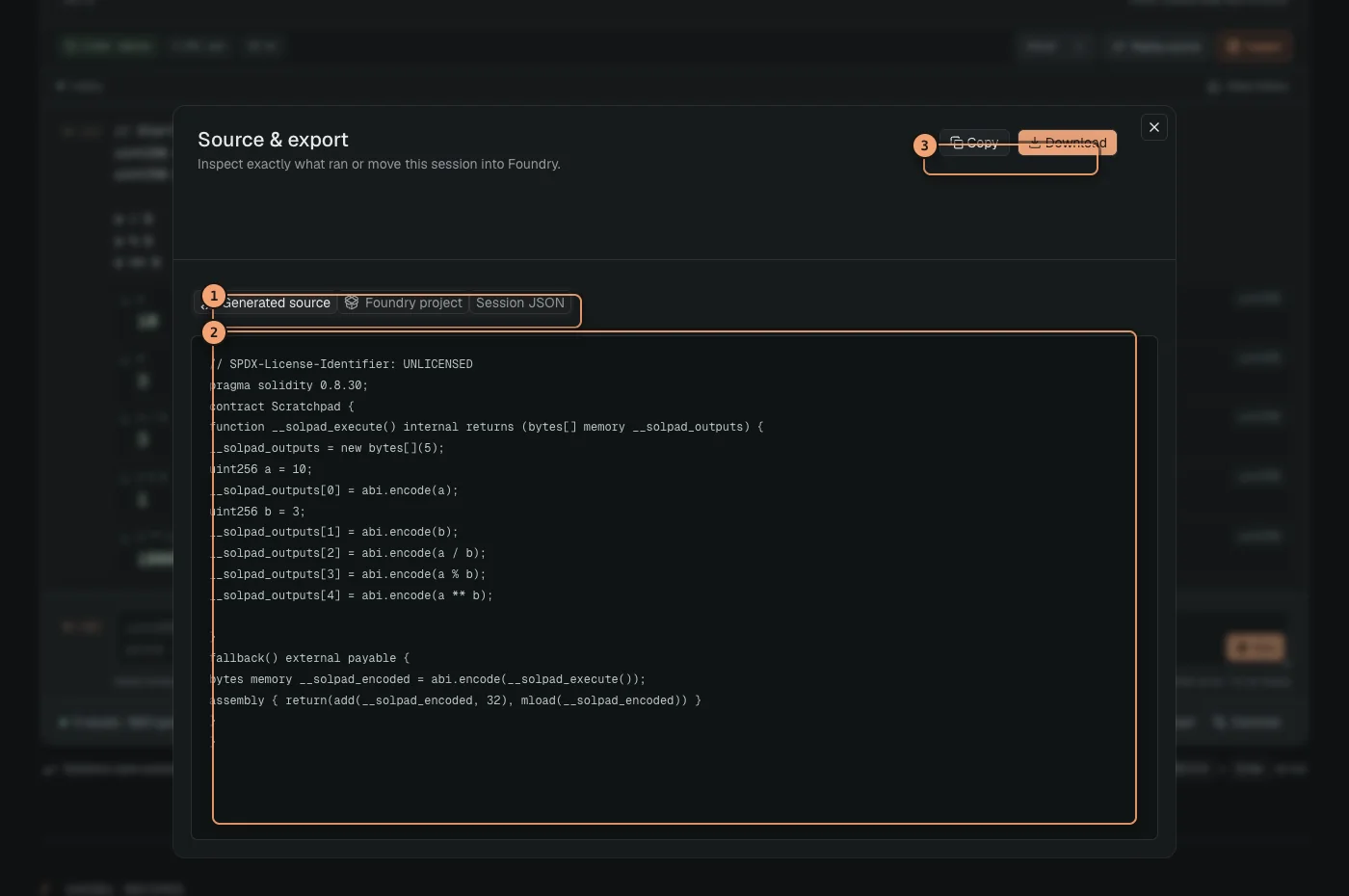
After a successful REPL run, Replay source opens the Source & export dialog. Choose Generated source to see the complete contract Solidity REPL compiled from accepted entries. It is separate from Inspect, whose Overview and activity tabs explain how that replay ran.
 Open full size
Replay source opens generated Solidity and export actions without switching the editor to Source mode.
- Export tabs
- Generated Solidity source
- Copy and download actions
The :source command opens this same export dialog; it does not change editor mode. Use the Source toggle above the editor when you want to edit the complete document. Export can download the generated source, a Foundry project for Solidity 0.8.0 and newer, or a portable Solidity REPL session. Legacy versions keep generated-source and session exports. Import the JSON later through the session menu to restore the investigation, including its transcript and draft.
- Generated source is useful for reviewing automatic wrapping.
- The Solidity 0.8+ Foundry project includes a reproduction script and settings.
- Session JSON carries the transcript, draft, source, local files, context, and preferences.